In this guide, you’ll learn how to locate, copy, verify, and safely share your Roblox avatar URL from desktop and mobile. Whether you want to show friends your latest outfit, share your character in a gaming community, or use your profile link alongside Roblox tools, these steps help you get the correct URL quickly.
Understanding the Basics of Your Roblox Profile Link
Your Roblox profile URL is the web address that leads directly to your Roblox profile. Because your avatar is displayed on your profile, this link can effectively serve as a Robloxian avatar profile link when you want others to view your character.
A typical Roblox profile URL follows a structure similar to:
https://www.roblox.com/users/USER-ID/profile
The important part is the unique user ID associated with your account. Your display name may change, but your account’s unique identifier provides a more dependable way to reference your profile.
Why Do You Need Your Avatar URL?
You might need your my Roblox avatar URL for several reasons:
- Share your Roblox character with friends.
- Add your Roblox profile to Discord communities.
- Showcase an outfit on social media.
- Help friends find your exact Roblox account.
- Reference your avatar when using Roblox-related tools.
- Check your profile after changing an outfit.
- Share your profile when participating in gaming communities.
If you are exploring outfits, catalog items, or games, RobloxianVerse can also complement your Roblox workflow with tools such as its Outfit Builder, Item Finder, and Game Finder.
How to Locate Your Avatar URL on a Desktop Browser?
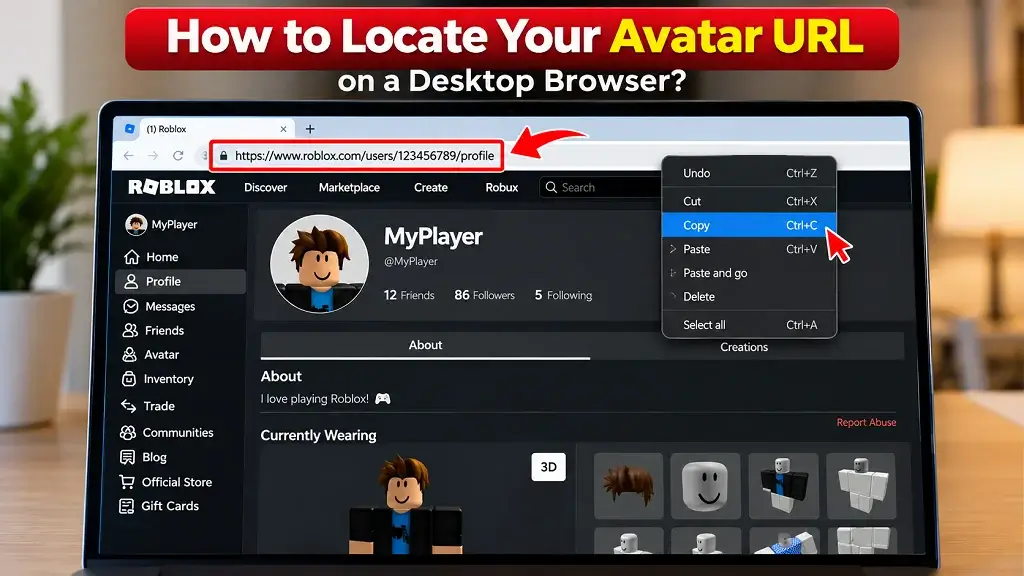
Finding your Roblox Profile URL on a desktop is straightforward because the browser address bar displays the complete profile address.
How to Access Your Personal Profile Page?
- Open Roblox in your preferred desktop browser.
- Sign in to your Roblox account.
- Open your profile.
- Confirm that the displayed avatar is your character.
- Look at the browser address bar.
Your profile page contains your Roblox username, avatar, experiences, and other publicly available profile information depending on your account settings.
Copying the Exact Link from the Address Bar
- Once your profile is open:
- Click the browser address bar.
- Select the complete URL.
- Press Ctrl + C on Windows or Command + C on Mac.
- Paste it into a note, message, or social profile to verify it.
- Open the copied link in another browser or private window if you want to confirm that it leads to the intended profile.
Expert tip: Avoid manually typing or editing the URL unless you know exactly what you are changing. Copying the complete address reduces the chance of missing characters.
How to Extract Your Avatar Link on the Roblox Mobile App?
The Roblox mobile app provides sharing options that can make sending your profile easier, although the exact interface can change as Roblox updates its app.
Opening the Profile Menu in the App
Open the Roblox app and sign in. Navigate to your profile and check that your username and avatar are correct before sharing. Depending on your app version, you may find profile and sharing controls in slightly different locations.
Using the Built-In Share Feature
If a Share option is available on your profile:
- Open your Roblox profile.
- Tap the share option.
- Select your preferred app.
- Send the profile link to your friend or community.
- If necessary, paste the generated link into a browser to verify it.
This method can be more convenient than copying the URL manually on a phone.
Best Practices for Sharing Your Roblox Avatar URL
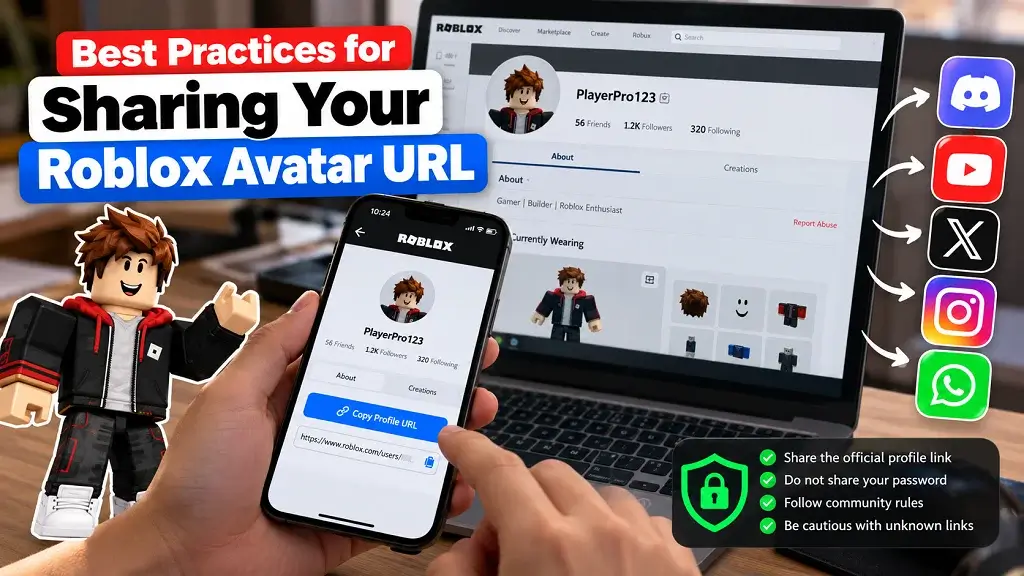
Sharing your profile is useful, but you should still treat your account information carefully. Your profile URL itself does not reveal your password, but the people you share it with can potentially view information that your Roblox privacy settings make public.
Adding Your Link to Discord and Gaming Communities
When posting your my Roblox avatar URL on Discord or other gaming communities, always share the official link copied directly from your Roblox profile and check that it opens the correct account before sending it. Avoid including login credentials, passwords, verification codes, or other private account information. It is also important to follow the community’s self-promotion rules, as some servers may restrict promotional links. When introducing yourself to a new gaming community, using your recognizable Roblox username alongside your profile link can also make it easier for other players to identify you.
Showcasing Your Character on Social Media Platforms
Your Roblox profile URL can work well alongside avatar screenshots, outfit showcases, and gaming content.
For example, you can pair your link with:
- Roblox outfit showcases
- Character customization posts
- Game clips
- Avatar transformation posts
- Roblox gaming tutorials
- Community introductions
If you are experimenting with different character styles, an outfit-focused workflow can start with RobloxianVerse’s Outfit Builder, while the Item Finder can help you explore relevant catalog items.
How to Send Direct Links to New Friends Safely?
If someone asks for your Roblox profile:
- Open your official profile.
- Copy the profile URL.
- Send only the link.
- Never send your password or verification codes.
- Be cautious with unknown links sent back to you.
- Block or report suspicious accounts when appropriate.
A legitimate friend does not need your Roblox password to add or interact with you.
Troubleshooting Common Profile Link Errors
Sometimes a copied link may not work as expected. Most problems are caused by incomplete URLs, incorrect profile pages, or changes in the Roblox interface.
How to Fix Broken or Incomplete Links?
If your Roblox profile link is broken or incomplete, start by copying the URL directly from your current Roblox profile again and make sure the full roblox.com address has been selected. Check the link for accidental spaces or missing characters before opening it. If it still does not work, try opening the URL in another browser to determine whether the issue is browser-specific. Also, confirm that you copied your actual profile page rather than another Roblox page. If you are using an old saved my Roblox avatar URL, visit your current profile and copy a fresh link to make sure you are sharing the correct and up-to-date address.
| Problem | What to Check |
|---|---|
| Link opens the wrong profile | Confirm the username and avatar |
| Link appears incomplete | Copy the full browser address |
| Link doesn’t open | Check spelling and extra characters |
| Mobile sharing behaves differently | Use the current Roblox app interface |
| Friends cannot find you | Send your complete profile URL |
How to Manage Privacy Settings for Profile Visibility?
Your profile’s publicly visible information depends on Roblox’s current privacy and account settings. If someone cannot see certain information, check your account privacy configuration rather than assuming the URL is broken.
Remember: a profile link identifies your Roblox profile; it does not give another person access to your account.
Final Thoughts
Finding your my Roblox avatar URL does not have to be complicated. On desktop, opening your profile and copying the complete browser address is usually the quickest method. On mobile, the profile’s available sharing feature can make the process even easier.
Once you have the correct link, you can share your Roblox character with friends, communities, and followers while keeping your account credentials private. For a broader Roblox discovery workflow, RobloxianVerse brings together tools such as Outfit Builder, Item Finder, and Game Finder to help you explore avatars, items, outfits, and games more efficiently.