Finding the correct Roblox item can be frustrating when you only know its name, appearance, or category. A Roblox item ID finder can simplify the process by helping you search for items, compare matching results, and identify the relevant item information.
With the RobloxianVerse Item Finder, you can explore Roblox Marketplace items using keywords and available filters. Once you find a potential match, review its details and open the original Roblox listing to confirm that it is the item you want. This guide explains what Roblox item IDs mean, how to find them, how UGC items differ from other assets, and what to check when an ID does not work.
Quick tip: An item ID identifies an asset or catalog item; it is not a promo code, a guarantee of ownership, or a promise that the item will work in every Roblox experience.
What Is a Roblox Item ID?
A Roblox item ID is a numerical identifier associated with a particular item or asset. Roblox uses IDs to identify different types of content, including avatar accessories, clothing, animations, audio, and assets used in Roblox Studio. For avatar customization, an ID can help you distinguish one shirt, hairstyle, hat, or accessory from another—even when several items have similar names or appearances.
You may encounter different types of IDs, including:
- Clothing IDs: Identifiers associated with specific clothing assets.
- Accessory IDs: IDs for items such as hats, hair accessories, face accessories, and other avatar items.
- Bundle IDs: Identifiers for certain grouped avatar items.
- Audio and asset IDs: Identifiers used for audio and other assets, depending on the Roblox feature or development workflow.
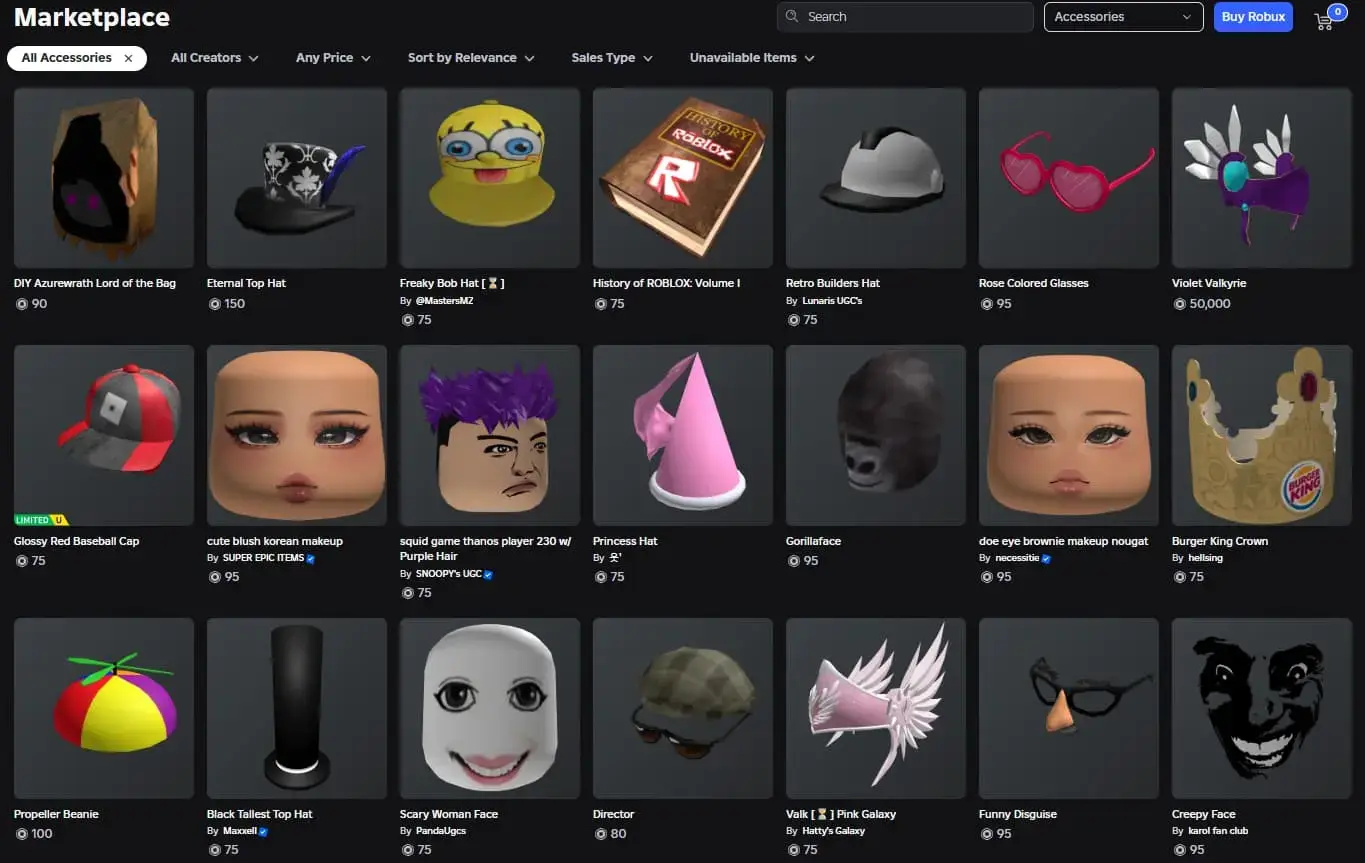
The exact ID type matters. Roblox Marketplace avatar items and Creator Store development assets serve different purposes, so you should confirm that the result matches your intended use. For the official explanation, see Roblox Creator Hub’s asset documentation.
What Is a UGC Item in Roblox?
UGC stands for User-Generated Content. In Roblox, the term commonly refers to content created or published by users and creators. In avatar customization, UGC items can include accessories, clothing, heads, and other cosmetic items available through the Roblox Marketplace.
Examples include:
- Custom hairstyles and hair accessories
- Hats, backpacks, and shoulder accessories
- Face accessories and other avatar cosmetics
- Clothing and layered clothing
- Other creator-made avatar items
A UGC item’s ID helps identify the specific listing. However, finding an ID does not automatically make an item free, grant ownership, or guarantee that it can be equipped in a particular game. Before choosing an item, check its name, thumbnail, creator, price, availability, and original Roblox listing. For more details about avatar items, refer to Roblox’s official Marketplace overview.
How to Search Roblox Items by ID and Find an Item ID
Whether you want to know how to search Roblox items by ID, how to get an item ID in Roblox, how to find the ID of a Roblox item, or how to get Roblox item IDs for avatar research, the following workflow provides a practical starting point.
1. Open the RobloxianVerse Item Finder
Visit the Roblox Item Finder to begin searching for an item. The tool searches cached Marketplace data, so results may not always reflect every recent Roblox catalog change. Treat the results as a starting point and verify important details against the original Roblox listing.
2. Search by Item Name or Keyword
If you know the item’s name, enter it into the search field. If you do not know the exact name, start with a descriptive keyword. For example, you could try searches such as:
- Black hoodie
- Cute hair
- Y2K accessories
- White sneakers
- Cat-ear headphones
- Layered jacket
Use shorter, more specific searches first. If the initial results are not relevant, try alternative words or narrow the search by category or budget where the available filters support it.
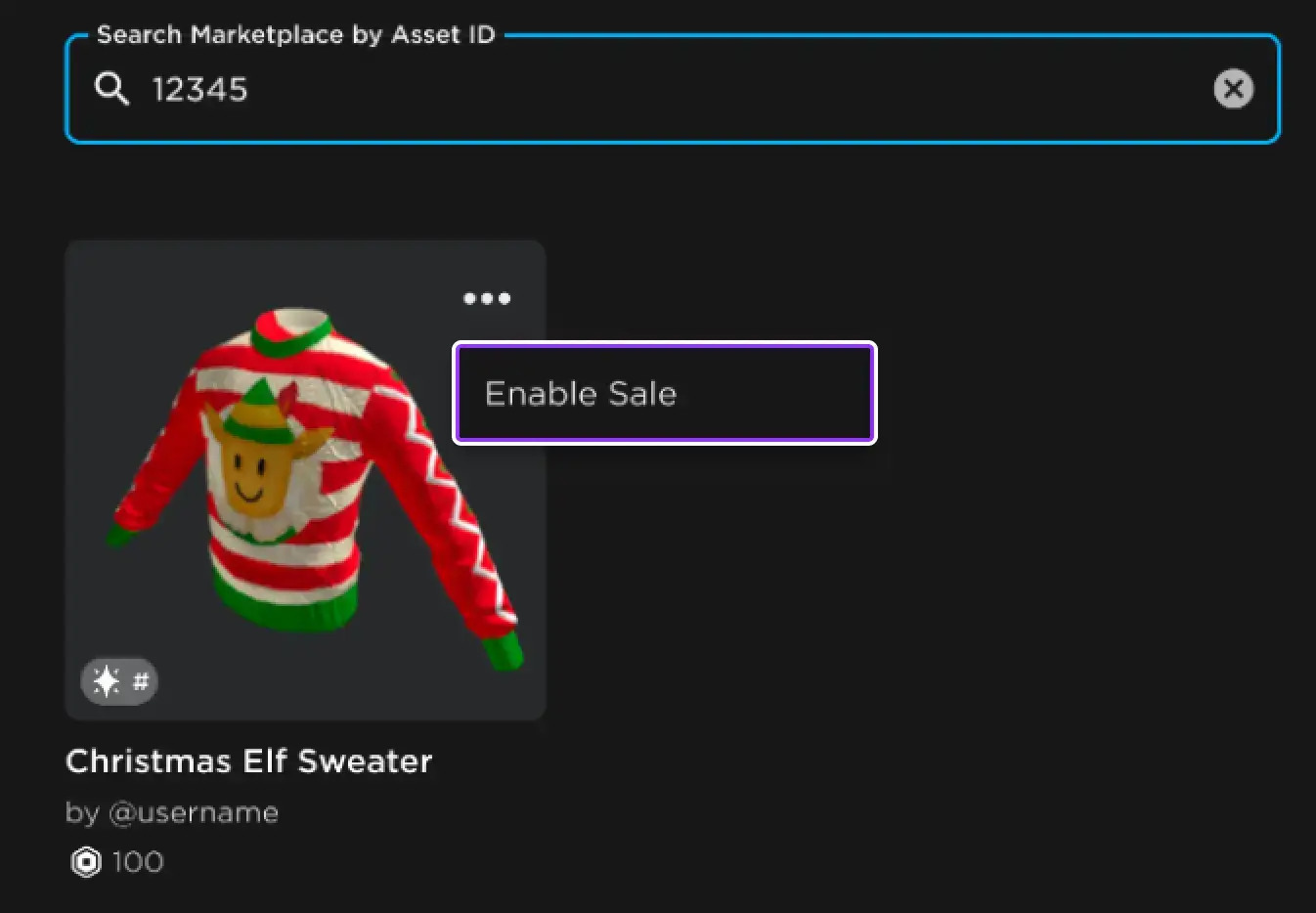
3. Compare the Search Results
Do not select an item simply because its name looks familiar. Compare the thumbnail, item name, category, creator information, and other details shown in the result. This is particularly important for UGC accessories and clothing, where similar designs can have different creators and different IDs.
4. Find and Copy the Relevant Item ID
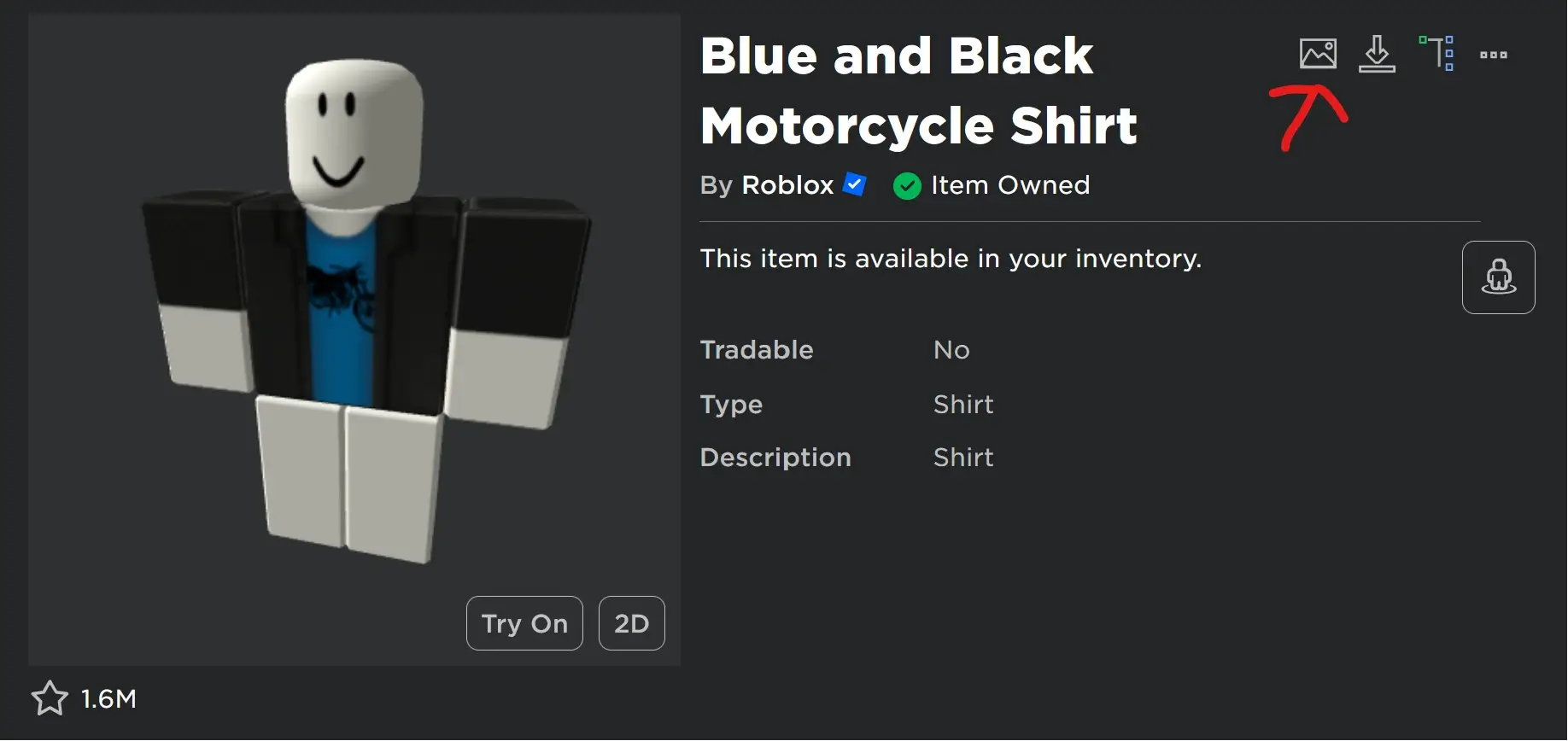
Once you identify a matching result, check its available item information and follow the link to its original Roblox listing. On the Roblox page, inspect the URL and item details. The numeric identifier in an item URL can help you identify the listing, but make sure you understand which type of ID the page represents. Do not assume every number in a Roblox URL is an avatar item ID. Copy the relevant identifier only after confirming that the item matches your search.
5. Verify the ID Before Using It
Open the original Roblox listing and compare it with the item you intended to find.
Check:
- Whether the item name matches
- Whether the thumbnail shows the correct design
- Whether the creator information is consistent
- Whether the item remains available
- Whether the asset type fits your intended use
For Roblox Studio development, use the appropriate asset reference for the relevant property or feature. For avatar customization, make sure you are checking the correct Marketplace item.
6. Use the ID in the Appropriate Roblox Context
A valid ID does not guarantee that an item can be used everywhere. Some assets have availability or permission restrictions, and individual Roblox experiences may support different customization features. If you are building an avatar, use the supported avatar or Marketplace workflow. If you are developing an experience, consult the relevant Roblox Creator Hub documentation before referencing an asset in Studio.
Why Is My Roblox Item ID Not Working?
If your Roblox item ID is not working, the issue may involve the ID itself, the item’s current status, the asset type, permissions, or the Roblox experience where you are trying to use it.
| Problem | Possible reason | What to check |
|---|---|---|
| The item does not appear in search | Search terms are too specific, or the cached results do not include it | Try a shorter keyword and verify directly on Roblox |
| The wrong item appears | Several items have similar names or designs | Compare the thumbnail, creator, and listing |
| The ID opens the wrong page | The number may belong to a different type of Roblox resource | Confirm the original URL and asset type |
| The item is unavailable | Its listing or availability may have changed | Check the official Roblox page |
| The ID does not work in a game | The experience may not support that item or use case | Review the game’s supported features |
| An audio asset does not play | Permissions or asset availability may prevent playback | Check the asset’s accessibility and the intended use |
Important: A search tool can help you locate an item, but it cannot guarantee that Roblox will keep that item available or that every experience will accept it.
Roblox Item ID Finder vs. Roblox Item ID Checker
A Roblox item finder and a Roblox item ID checker have related but different purposes.
| Tool or method | Main purpose |
|---|---|
| Roblox item finder | Discover items by name, keyword, category, or available identifying details |
| Roblox item ID search | Locate a specific item or find its identifier |
| Roblox item ID checker | Helps you review an ID or verify available item information |
| Official Roblox listing | Confirm the item’s published details and current listing status |
A Roblox item finder by ID is useful when you already have a number and want to identify the associated item, provided the tool supports ID-based searching. A Roblox ID item finder may also help you locate a listing when you know only part of its name or description.
The term Roblox ref ID search can mean different things depending on the tool. Before searching, confirm whether you need an avatar item ID, a bundle ID, a user ID, a place ID, or another reference.
For the most reliable verification, compare the results with Roblox’s official pages rather than relying on a third-party result alone.
Is It Safe to Use a Third-Party Roblox Item Finder?
A third-party search tool can be useful for discovering catalog items, but basic account security still matters.
Use these precautions:
- Never provide your Roblox password or account cookies just to search for an item ID.
- Avoid unknown downloads or browser extensions that are unnecessary for item discovery.
- Verify the item using its original Roblox listing.
- Be cautious of websites promising free Robux or unauthorized access to restricted items.
- Do not assume a third-party result is live or fully up to date unless the website clearly explains how its data is maintained.
RobloxianVerse provides item discovery tools and guides independently of Roblox. The Item Finder searches cached Marketplace data, so check Roblox directly when current availability, pricing, or permissions are important.
Final Thoughts
Finding the right Roblox item ID starts with a relevant search and ends with verification. Use descriptive keywords, compare the results carefully, confirm the identifier against the original Roblox listing, and check whether the item is suitable for your intended use. Try the RobloxianVerse Item Finder to discover items, or explore the Roblox Outfit Builder if you want to turn your discoveries into a coordinated avatar look. For asset-specific technical details, always refer to the official Roblox Creator Hub documentation.
Editorial note: Keep the article’s author information accurate, add genuine screenshots from the tool, and update the content whenever the search workflow or tool functionality changes.