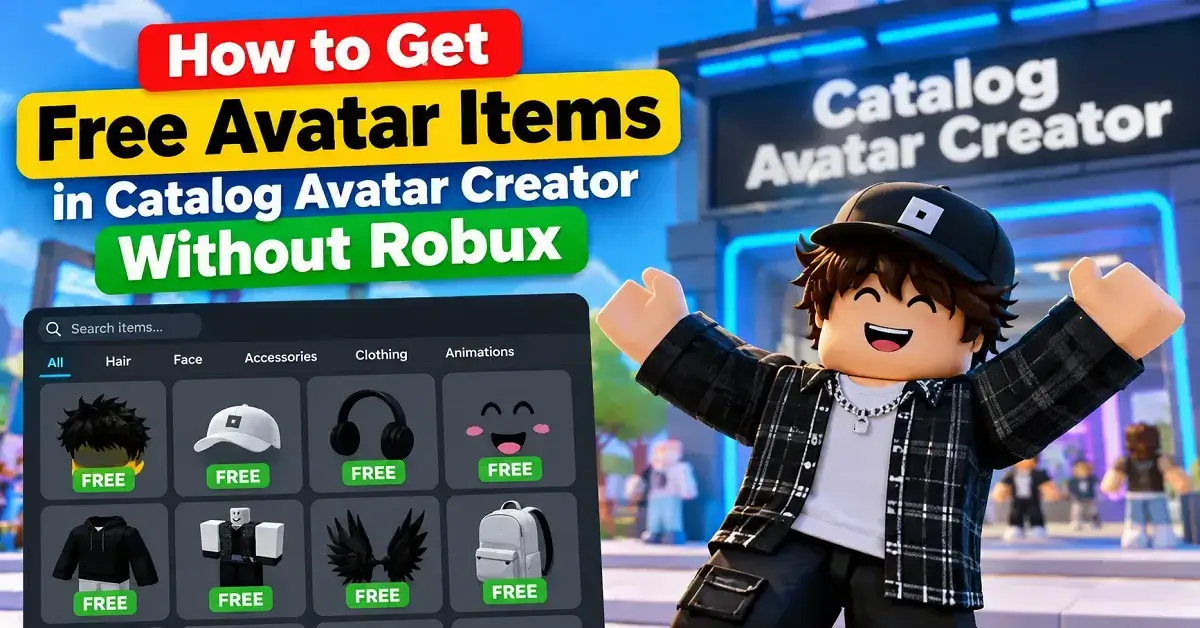
Free Catalog Avatar Creator is useful for experimenting with your avatar because you can browse a large selection of items and see how they look together. You can mix free items with other catalog options, save your favorite outfit ideas, and build a style that fits your Roblox character without needing to spend Robux just to try it.
What Is Catalog Avatar Creator and How Does It Work?
Catalog Avatar Creator is a Roblox experience designed for creating and testing avatar outfits. It lets players browse catalog items and try different combinations of accessories, hats, hair, layered clothing, bundles, and animation packs before deciding what to use. The official Roblox experience description highlights its try-on features and community-created outfit collection. This makes it useful for players who want to explore different avatar styles without immediately spending Robux. Most importantly, trying an item does not mean you own it. Players should check the item’s ownership and purchase status before assuming it has been added to their inventory.
The experience works much like a virtual fitting room. You can combine multiple avatar items, adjust your look, and see how the complete outfit appears before making a purchase. This is especially helpful when testing expensive items or checking whether several accessories work well together. According to the official Roblox listing, purchases made through the experience are added to your Roblox inventory and can be used across Roblox experiences where supported. For players searching for free avatar items, it is important to understand that Catalog Avatar Creator primarily provides a way to try on and explore items, rather than making every catalog item permanently free.
Can You Create a Roblox Avatar Without Robux?
Yes, you can create a Roblox avatar without spending Robux, but there is an important distinction between creating a look and owning every item in that look. Catalog Avatar Creator lets you experiment with catalog items for free, while Robloxian avatar systems still follow ownership rules for items that cost Robux.
This means you can start with items you already own and add genuinely free items to create a complete outfit. You can also preview paid items and decide whether they are worth buying later. That makes the experience useful even if your Roblox balance is zero.
A practical free avatar setup might use:
| Avatar Part | Free Outfit Approach |
|---|---|
| Body | Use your existing Roblox body |
| Skin tone | Choose a color that matches the outfit |
| Hair | Use an owned or free hairstyle |
| Face | Use an available face |
| Shirt | Use a free or owned shirt |
| Pants | Match the shirt with simple colors |
| Accessories | Add free or already owned accessories |
| Layered clothing | Use items you already own |
| Colors | Keep two or three main colors |
The trick is not trying to copy an expensive avatar piece by piece. Instead, build around what you already have. A simple black, white, gray, blue, or brown color palette can make a basic avatar look much more intentional.
How to Get Free Items in Catalog Avatar Creator
The easiest way to start is to open Catalog Avatar Creator and browse the available catalog categories. Search for the item type you want, preview it on your character, and check the item’s price before deciding what to do next. The official experience description confirms that free try-on is a core feature, including accessories, hats, hair combinations, bundles, animation packs, and other catalog content.
How Can You Find Free Avatar Items?
Start with the catalog search and look for items marked as free or priced at zero. You should still check the actual item details before assuming an item costs nothing.
A good workflow is:
- Choose a category such as hair, shirts, pants, accessories, or faces.
- Search for a style you like.
- Preview the item.
- Check the displayed price.
- Equip it if it is available to you.
- Combine it with items you already own.
- Save the finished look if the experience provides that option.
Do not rely on a random video or social media post claiming that an item is free. Roblox catalog prices can change, and old videos can continue to appear in search results long after an item changes.
How Can You Try Roblox Items for Free?
This is where Catalog Avatar Creator shines. You can preview catalog items on your avatar before deciding whether to purchase them. The official listing directly describes the experience as a place where players can try many avatar and catalog items for free.
The safest habit is simple: try first, buy second.
For example, suppose you find a jacket that costs 75 Robux. Instead of buying it immediately, equip it in Catalog Avatar Creator. Add your current hair, face, pants, and accessories. Rotate the avatar and check the full look. If the jacket makes the outfit better, you can consider buying it. If it does not, you have saved your Robux.
Can You Use Free Items From the Roblox Catalog?
Yes, if the item is genuinely free and available through Roblox’s catalog, you can obtain it according to Roblox’s normal item rules. Catalog Avatar Creator can help you discover and preview items, but it does not turn a paid catalog item into a permanently owned free item.
This difference matters because the word free is often used loosely in Roblox videos. “Free to try” is not the same as “free to own.” Roblox’s own documentation explains that when an avatar editor saves an outfit, users do not receive catalog items that they do not own.
Are Catalog Avatar Creator Items Really Free?
Some things are free to try, while some items are free to own. Those are two separate ideas.
Catalog Avatar Creator’s official listing says players can try many catalog items for free. It also says that purchases made in the experience are added to the user’s Roblox inventory. So, when you see a premium item on your avatar, do not assume it has been added to your account. If you want permanent ownership, check the item’s purchase option and price.
How Can You Build an Outfit Without Spending Roblox?
Start with one strong item you already own. Maybe it is a hairstyle, jacket, shirt, face, or accessory. Then build around it rather than searching for an entire expensive outfit.
A simple method is:
Base → Colors → Clothing → Hair → Accessories → Final check
Keep your color palette tight. Two or three main colors usually make a beginner outfit look cleaner than adding ten unrelated colors. You can also use contrast. A dark shirt with light pants creates a clear visual break. A simple hairstyle can balance a detailed jacket. Small choices like these often matter more than the price of the items.
How to Make Free Roblox Looks in Catalog Avatar Creator
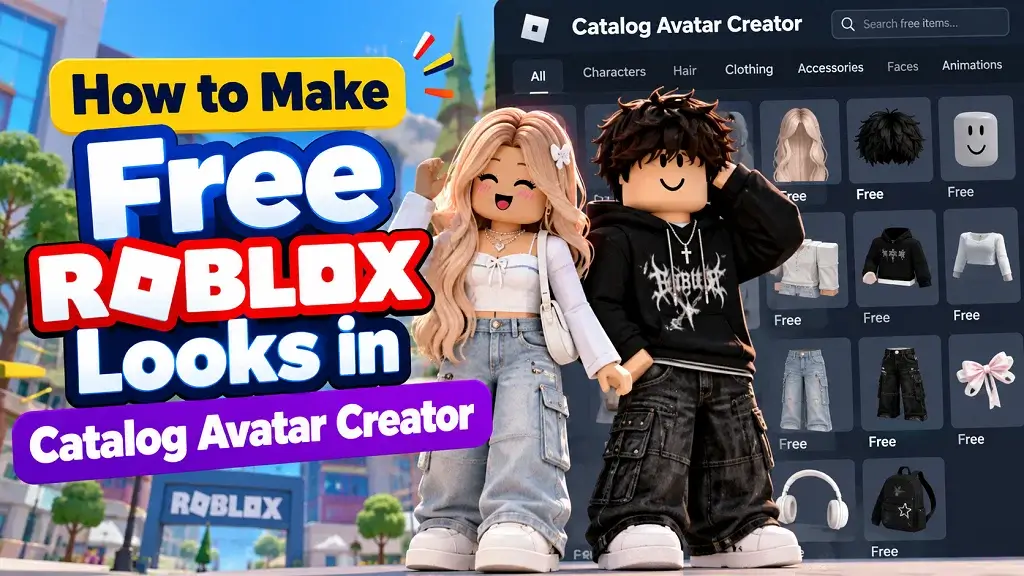
Creating a free Roblox look is less about finding one magical item and more about combining ordinary pieces well. You can make casual, cute, sporty, streetwear, minimalist, fantasy, or classic looks without copying a high-priced avatar.
The best approach is to choose a theme before you start browsing. If you want a sporty look, search around that idea. If you want a clean minimalist avatar, avoid filling every available accessory slot.
What Are Some Free Girl Avatar Ideas?
For a simple girl avatar, start with a clean hairstyle, basic face, matching top and pants, and one small accessory. Pastel colors can create a softer style, while black, white, gray, and denim shades can create a casual streetwear look.
You could build around:
- Simple hair
- Basic face
- White or pastel top
- Jeans or simple pants
- Small shoulder or head accessory
- Matching shoes if available
The important part is balance. If your hair is large and detailed, keep the clothing simple. If your clothing has a strong pattern, use fewer accessories.
What Are Some Free Boy Avatar Ideas?
For a boy avatar, try a clean casual outfit with simple hair, a basic face, a hoodie or shirt, and matching pants. Black, gray, navy, white, and muted green are easy colors to combine.
A simple streetwear look can use:
- Short or medium hairstyle
- Hoodie or basic shirt
- Cargo style pants
- Simple shoes
- One small accessory
You do not need a rare limited item to make the avatar look good. A clear theme and matching colors can carry the entire design.
What Are Some Minimalist Roblox Avatar Ideas?
Minimalist avatars work especially well when you have few items. Use one main color, one secondary color, and one small visual detail.
For example, you could use a white shirt, dark pants, simple hair, and one black accessory. Another option is an all-black outfit with a small gray or white detail.
Minimalism also makes it easier to see the avatar’s shape. When you equip too many accessories, the character can start looking crowded. If the goal is a clean Roblox profile picture, less can be more.
How Can You Personalize a Roblox Avatar Without Buying Items?
You can change much more than clothing. Your body, skin tone, hair, face, clothing, accessories, layering, and colors all affect the final appearance.
Start with the body shape and skin tone. Then choose the face and hair. After that, add clothing and accessories. This order helps because hair and body proportions can change how clothing appears.
Layering also matters. If two pieces overlap badly, remove one rather than forcing both into the same outfit. Roblox’s avatar system supports layered clothing and avatar customization, and Roblox’s Avatar Editor Service provides developers with tools to search catalog content, equip avatar items, and save avatar configurations.
You can also use color as a design tool. Instead of asking, “What expensive item should I buy?” ask, “What colors do I want this avatar to have?” That small change in thinking can help you create a better outfit with fewer items.
How to Adjust Accessories in Catalog Avatar Creator
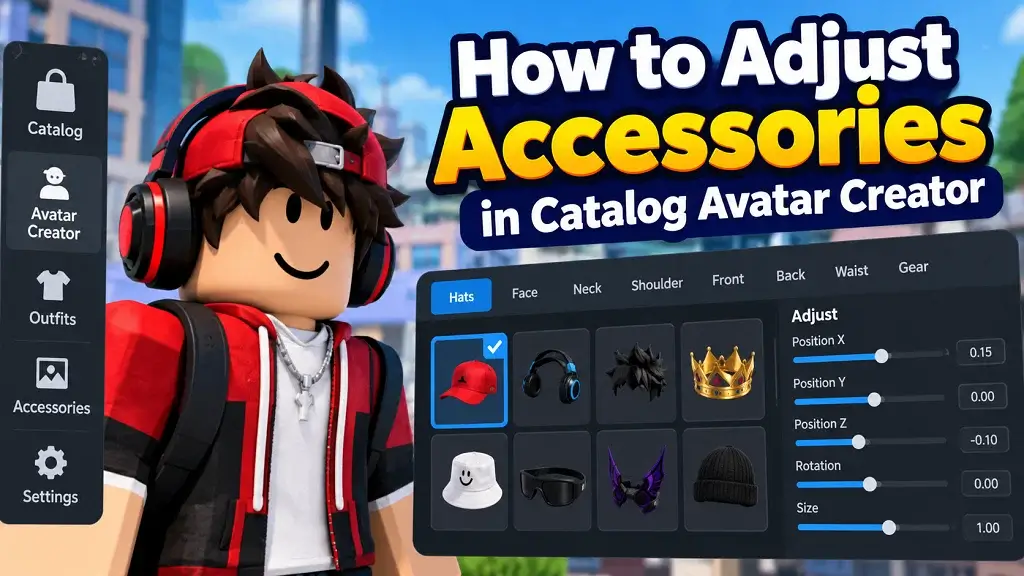
Accessories can completely change an avatar, but they can also cause the most visual problems. A hat can cover hair. Glasses can clip into a face. A shoulder item can disappear behind layered clothing. That is why you should inspect your avatar from more than one angle before saving or buying anything.
How Do You Move, Rotate, or Position Accessories?
If the experience provides accessory adjustment controls, use them to fine-tune the placement. The exact controls can change after updates, so check the current in-game controls rather than relying on an old video.
On mobile, touch controls are used for navigation and avatar viewing. A current community guide describes tap based catalog interaction, drag based avatar rotation, and pinch gestures for zooming. On PC, mouse and keyboard controls generally make detailed browsing easier. You can rotate the preview, zoom in, and move through catalog menus while checking the result.
Why Is an Accessory Not Showing on My Avatar?
There are several common reasons. The item may be hidden by another accessory. It may not be compatible with the current avatar setup. It may be layered underneath clothing. The experience may also need to reload the avatar after a change. Try removing the newest item first. Then add the items back one at a time. This works like troubleshooting a computer: change one thing, test it, and identify the exact part causing the problem.
How to Save Your Outfit to Roblox
Saving is where many new players get confused. Creating an avatar inside an experience does not automatically mean that every catalog item is now yours. Roblox’s official documentation is very clear on this point. When an in-game avatar editor saves an avatar or outfit, users do not receive catalog items they do not own.
How Do You Save an Outfit?
If the experience presents a save or save-to-Roblox option, follow the on-screen prompt. Catalog Avatar Creator’s current Roblox listing says players can save avatars created in the experience, while Roblox’s Avatar Editor Service supports saving avatars and creating outfits through its official platform systems.
Before saving, check:
- Your avatar looks correct from several angles.
- The items you want to keep are actually owned by you.
- You are logged into the correct Roblox account.
- Any paid items you want permanently are purchased.
- The save confirmation completes successfully.
Why Is My Outfit Not Saving?
A failed save can happen because of a connection problem, a Roblox service issue, an experience update, or because the outfit contains items you do not own. Try rebuilding the outfit with your owned items first. If that works, add other pieces one at a time.
Why Are Some Avatar Items Missing After Saving?
This is normally an ownership issue rather than a bug. Roblox documentation says users do not receive catalog items they do not own when an avatar or outfit is saved.
For example, imagine you tried a 100 Robux hat for free inside Catalog Avatar Creator. You save the outfit, return to Roblox, and the hat is missing. That makes sense if you never purchased or owned it.
Can You Wear Catalog Avatar Creator Outfits on Roblox?
You can wear an outfit on Roblox when the relevant items are owned and the outfit has been successfully saved through the supported avatar system. The official Roblox documentation confirms that Avatar Editor Service can save and update avatars and outfits.
The key word is owned. Previewing an item is not the same as owning it.
Do Free Items Go Into Your Roblox Inventory?
If an item is genuinely free to obtain and you claim it through the proper Roblox process, it can become part of your account’s inventory. Simply trying a catalog item inside Catalog Avatar Creator does not automatically transfer ownership.
That is the safest rule to remember: try-on is for testing, purchase or claim is for ownership.
What Are the Catalog Avatar Creator Controls at a Glance?
Controls can change when the developer updates the experience, so treat this as a practical starting point rather than a permanent keyboard manual.
| Action | PC | Mobile |
|---|---|---|
| Move | WASD or Roblox movement controls | Virtual joystick |
| Camera | Mouse controls | Touch drag |
| Zoom | Mouse wheel | Pinch |
| Select item | Mouse click | Tap |
| Open menus | Click UI buttons | Tap UI buttons |
| Chat | Roblox chat control | Chat button |
| Interact | Click or in-game prompt | Tap prompt |
A current third party guide also lists common Roblox controls such as WASD, Space, mouse camera movement, touch camera movement, and pinch based zooming.
What Are the Controls on PC?
PC is useful when you want to browse many items quickly. A mouse makes it easier to select small catalog buttons, rotate the avatar, inspect accessories, and move between menus. For serious outfit building, a useful workflow is to keep your avatar preview visible while you browse. That way you can immediately see whether a new item improves the outfit.
What Are the Controls on Mobile?
Mobile uses touch controls, so you tap catalog items and use gestures to inspect your avatar. A current mobile guide describes drag based avatar rotation and pinch based zoom. If you are using a phone, take your time when pressing purchase related buttons. Small screens make accidental taps easier, especially when browsing quickly.
Catalog Avatar Creator vs Roblox Avatar Editor
Both tools help you customize a Roblox avatar, but they are not exactly the same thing.
| Feature | Catalog Avatar Creator | Roblox Avatar Editor |
|---|---|---|
| Try catalog items | Yes | Yes |
| Build outfits | Yes | Yes |
| Community outfit discovery | Strong focus | More account focused |
| Try paid items before buying | Yes in the experience | Catalog preview available |
| Save avatar | Supported by experience | Native Roblox feature |
| Ownership | Roblox rules still apply | Roblox rules apply |
| Main purpose | Experiment and style | Manage your Roblox avatar |
What Is Catalog Avatar Creator?
Catalog Avatar Creator is an in-game avatar styling experience. Its official Roblox listing focuses heavily on free try-ons, catalog browsing, community outfits, and saving creations.
What Is the Roblox Avatar Editor?
The Roblox Avatar Editor is the platform’s native avatar customization system. Roblox also provides developers with AvatarEditorService, which can search catalog content, access permitted inventory information, equip avatar items, and save avatars or outfits.
Catalog Avatar Creator is your creative fitting room. Roblox Avatar Editor is your account’s main wardrobe.
Use Catalog Avatar Creator when you want to experiment with combinations and see how an outfit looks. Use Roblox’s normal avatar tools when you want to manage the items and outfits associated with your actual account.
What Common Mistakes Should You Avoid in Catalog Avatar Creator?
The biggest mistake is assuming that anything you can wear in the preview automatically belongs to you. It does not.
Other mistakes include trusting outdated code lists, buying an item before testing it, using too many accessories, ignoring color matching, and forgetting to check whether an item is actually free.
Here are the mistakes I would watch for:
- Confusing try-on with ownership.
- Buying before testing the complete outfit.
- Trusting old “free Robux” videos.
- Using unverified code lists.
- Giving a website your Roblox password.
- Adding too many accessories.
- Ignoring layered clothing conflicts.
- Not checking the outfit from different angles.
- Forgetting which account is logged in.
- Assuming a saved outfit gives you every item inside it.
Roblox’s official documentation supports the ownership warning directly: saving an outfit does not give the user catalog items they do not already own.
Tips for Building Better Free Roblox Outfits
If you want your avatar to look good without spending Robux, focus on design rather than price. A free outfit with a clear color scheme can look much better than an expensive outfit packed with random items.
Try this simple formula:
One main color + one support color + one detail
For example, black plus white with a small red detail can create a strong streetwear style. Blue plus white can feel clean and casual. Brown plus cream can create a softer look.
You should also inspect your outfit before saving it. Rotate the avatar. Zoom in. Check the back. Look at the hair and face together. See whether your accessories overlap. If you publish content about Roblox avatars on Robloxian Verse, these details are also worth explaining to readers because they answer the real question behind “free avatar items”: players want to create something they like without wasting their Roblox.
The official Roblox ecosystem also makes an important distinction between catalog discovery, ownership, and avatar saving. Roblox’s Avatar Editor Service can search the catalog and save avatar configurations, but users do not receive items they do not own.
Final Thoughts
Catalog Avatar Creator is a useful way to experiment with Roblox avatar styles without spending Robux immediately. Its official Roblox listing confirms that players can try many catalog items for free, including accessories, hats, limiteds, hair combinations, bundles, and animation packs.
The important part is understanding what “free” means. You can freely try many items, but that does not mean you permanently own them. If an item costs Robux, you still need to purchase it before it becomes part of your owned catalog collection.
For a zero Roblox outfit, start with items you already own and genuine free items. Keep the colors simple, avoid overcrowding the avatar, and check every item before buying. If you use codes, verify them because code information can become outdated quickly.